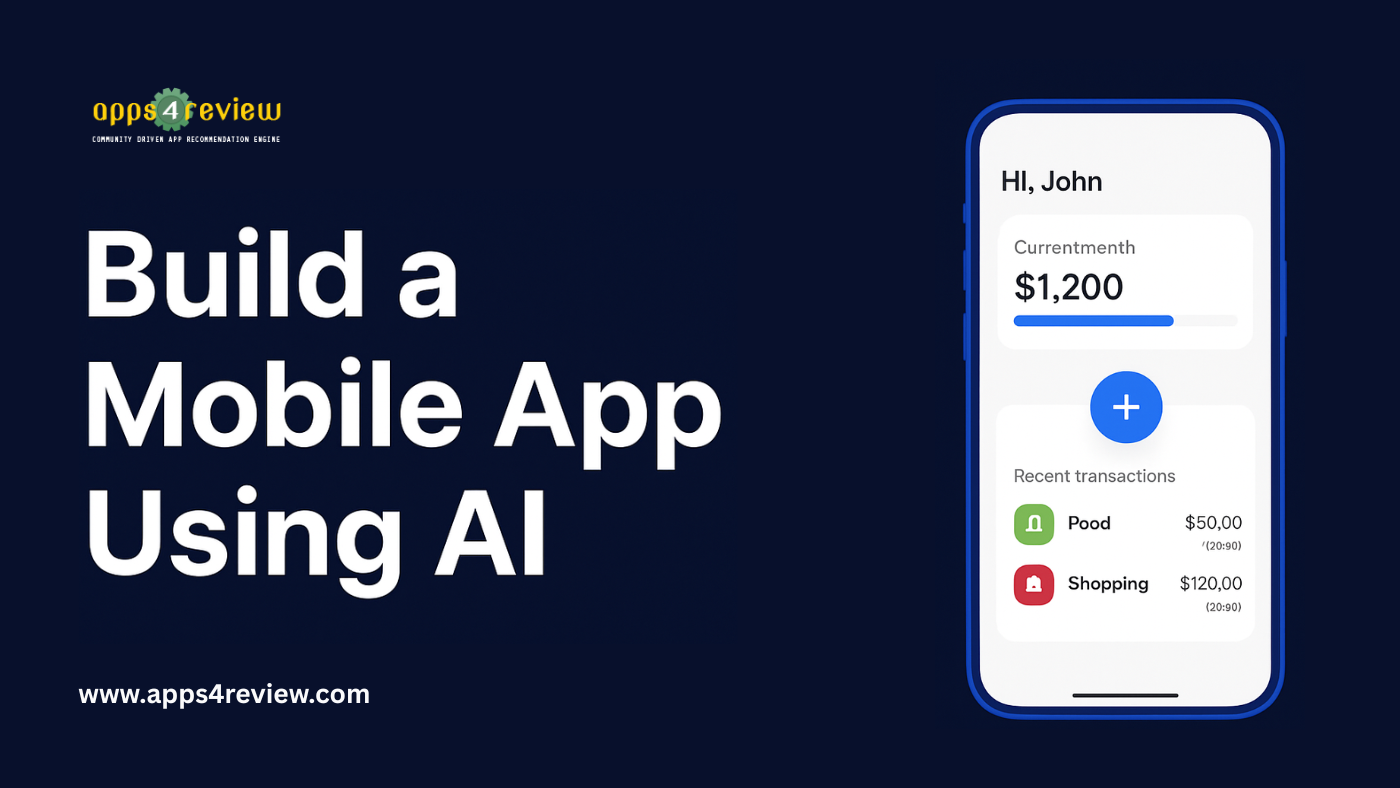
Last month, I challenged myself to build a fully functional budget tracking app in just 48 hours—without writing a single line of code. The result? A polished mobile app with user authentication, cloud database, and real-time expense tracking that’s now live on the Google Play Store with 500+ downloads. If someone had told me five years ago this was possible, I would have laughed. But AI-powered no-code tools have completely transformed what’s achievable for non-developers
The traditional path to building a mobile app involves months of learning programming languages, hiring expensive developers (typically $5,000-$50,000+), or settling for basic templates that look amateurish. But in 2025, AI has democratized app development. You can now build professional-grade mobile applications using intuitive visual tools, intelligent design assistants, and automated coding platforms—all while keeping your day job
In this comprehensive guide, I’ll walk you through the exact process I used to create my budget tracking app, from initial concept to published application. Whether you’re an entrepreneur with an app idea, a small business owner needing a custom solution, or simply curious about no-code development, this tutorial will prove that anyone can become an app
What You’ll Create
By following this guide, you’ll build a fully functional mobile app with these professional features:
- User Authentication: Secure login and signup system
- Cloud Database: Real-time data storage and synchronization
- Core Functionality: Complete CRUD operations (Create, Read, Update, Delete)
- Professional UI: Modern, responsive design that works on all devices
- Push Notifications: Engage users with timely alerts
- Cross-Platform: Works on both iOS and Android devices
The best part? This entire process uses free tiers of professional tools, meaning you can build and test your app without spending a single dollar
Tools You’ll Need
Before we dive in, let’s cover the AI-powered toolkit that makes this 48-hour miracle possible:
FigJam AI – For brainstorming and planning your app concept. FigJam’s AI assistant helps you organize ideas, create user flows, and map out features automatically. Free tier available.
Figma with AI Features – For designing your app’s user interface. Figma’s new AI capabilities can generate entire screen layouts from text descriptions, saving hours of design work. Free for individuals.
FlutterFlow – For building the actual functioning app without code. This visual development platform connects to your Figma designs and adds functionality through drag-and-drop interfaces. Free tier includes testing on real devices.
Firebase – Google’s backend platform that handles user authentication, databases, and cloud storage automatically. Free tier is generous and sufficient for testing.
Optional: Mobbin – A library of real app designs for inspiration. Useful if you want to see how successful apps handle similar features
Hour 0-4: Research and Planning
Every successful app solves a specific problem. Before touching any design tools, clearly articulate what problem your app addresses and who will use it.
I started by opening FigJam and creating a mind map. FigJam’s AI helped me brainstorm by suggesting questions I hadn’t considered:
- What’s the core problem? (People struggle to track daily expenses)
- Who’s the target user? (Young professionals, college students, families)
- What are the must-have features? (Add expense, categorize spending, view summary)
- What makes this different from existing apps? (Simplicity over complexity)
Pro Tip: Use FigJam’s AI template for “App Planning” which automatically generates sections for user personas, features, and competitive analysis. Simply describe your app idea, and the AI structures your brainstorming session
Step 2: Create User Flow Diagrams (1 hour)
With your concept defined, map out how users will navigate through your app. This prevents you from building confusing interfaces later.
In FigJam, I used the AI flowchart feature to visualize the user journey:
- Onboarding Flow: Splash screen → Registration → Tutorial
- Main Flow: Home dashboard → Add expense → View expense → Edit/Delete
- Supporting Flows: Categories management → Reports/Analytics → Settings
FigJam’s AI automatically suggested I was missing a “forgot password” flow and a “first-time user experience”—critical features I hadn’t initially considered. This is where AI assistants truly shine, catching oversights before they become expensive mistakes
Step 3: Competitive Research (2 hours)
Before designing anything, study successful apps in your category. I used Mobbin to analyze 20+ expense tracking apps, taking screenshots of:
- Onboarding sequences that felt welcoming
- Home screen layouts that showed information clearly
- Form designs that made data entry effortless
- Navigation patterns that felt intuitive
Understanding what works (and what frustrates users) in existing apps saves countless hours of trial and error. You’re not copying—you’re learning from millions of dollars of user experience research that companies have already invested
Hour 4-12: Design with Figma AI
Step 4: Generate Initial Designs with AI (3 hours)
This is where the magic happens. Open Figma and start a new mobile project (375x812px for iPhone standard size).
Instead of creating screens from scratch, I used Figma’s “First Draft” AI feature. Here’s the exact prompt I used:
“Create a modern expense tracking app home screen with: a greeting header, current month spending summary card showing total amount and budget progress bar, quick add expense floating button, and a list of recent transactions with category icons, amounts, and dates. Use a clean design with blue and white color scheme, modern sans-serif font, and card-based layout.”
In under 30 seconds, Figma AI generated a complete screen layout. Was it perfect? No. But it was 80% there—a foundation that would have taken me hours to create manually.
I repeated this process for all essential screens:
- Splash Screen: “Create a welcoming splash screen with app logo and tagline”
- Login/Signup: “Design a modern authentication screen with social login options”
- Add Expense Form: “Create an expense entry form with amount input, category selector, date picker, and notes field”
- Expense Detail: “Design a detailed expense view with edit and delete options”
- Reports Dashboard: “Create a spending summary screen with monthly chart and category breakdown”
For each screen, I refined the AI output by adjusting colors, spacing, and typography to match my brand. Figma’s AI is brilliant at structure and layout—you just need to add your personal touch
Step 5: Create Design System (2 hours)
Professional apps maintain visual consistency through design systems. In Figma, I created reusable components:
- Buttons: Primary, secondary, and text button variants
- Input Fields: Text, number, date, dropdown styles
- Cards: Transaction card, summary card, category card
- Icons: Using Figma’s icon libraries or generating custom ones with AI
- Color Palette: Defined 5 core colors and their variations
Figma’s AI helped generate color harmonies. I started with a primary blue (#2563EB) and asked AI to suggest complementary colors for success, warning, error, and neutral states. Within seconds, I had a professional, accessible color system
Step 6: Create Interactive Prototype (3 hours)
Static screens are beautiful, but prototypes bring your app to life. Using Figma’s prototyping mode, I connected screens with interactions:
- Clicking “Add Expense” button navigates to expense form
- Submitting form shows confirmation and returns to home
- Tapping transaction opens detail view
- Swiping left on transaction reveals delete option
Figma’s “Smart Animate” feature makes transitions smooth and professional without any animation knowledge. Your prototype should feel like a real app—this is what you’ll use for testing and what FlutterFlow will reference when building the actual application
Hour 12-36: Build with FlutterFlow
Step 7: Import Designs to FlutterFlow (2 hours
FlutterFlow is where your designs become a functioning app. Create a free account and start a new project.
FlutterFlow can import your Figma designs directly:
- In Figma, right-click your design file and copy the link
- In FlutterFlow, go to “Figma Integration” and paste the link
- Select which screens to import
- FlutterFlow converts your designs into Flutter widgets
The conversion isn’t always perfect—you’ll need to adjust spacing, fonts, and responsive behavior. But you’re starting with 70% of the visual work already done
Step 8: Set Up Firebase Backend (3 hours)
Your app needs a database to store user information and expense data. FlutterFlow makes Firebase integration remarkably simple:
- In FlutterFlow, go to “App Settings” → “Firebase Setup”
- Click “Auto-Setup Firebase” and authenticate with your Google account
- FlutterFlow automatically creates a Firebase project and connects it
Now configure your database structure. For the expense tracking app, I created these Firestore collections:
- Users: Stores user profiles and preferences
- Expenses: Contains all expense records (amount, category, date, notes)
- Categories: Defines expense categories with icons and colors
FlutterFlow provides a visual database builder—no SQL knowledge required. You define fields, data types, and relationships through dropdown menus and checkboxes
Step 9: Implement User Authentication (2 hours)
FlutterFlow’s authentication templates handle the complex security aspects:
- Add “Initial Page” → Select “Login/Signup” template
- Configure authentication methods (Email/Password, Google, Apple)
- FlutterFlow generates complete authentication flows automatically
Test the login system in FlutterFlow’s preview mode. You can create test accounts and verify authentication works before adding any other features
Step 10: Build Core Functionality (15 hours)
his is the most time-intensive phase, but FlutterFlow’s visual approach makes it manageable. For each major feature:
Adding Expenses:
- Create form fields for amount, category, date, notes
- Add “Submit” button with action: “Create Document” in Expenses collection
- Configure which fields map to which database fields
- Add validation (amount must be positive, category required)
- Show success message and navigate back to home
Displaying Expenses:
- Add “ListView” widget to home screen
- Connect to Firestore query: Expenses where userID equals current user
- Order by date (newest first)
- Map database fields to UI elements (amount to text, category to icon)
- Add pull-to-refresh functionality
Editing/Deleting:
- On expense tap, navigate to detail page passing expense ID
- Pre-populate form fields with existing data
- “Update” button modifies the document
- “Delete” button removes document after confirmation dialog
Calculating Summaries:
- Create aggregated queries in FlutterFlow
- Display monthly total, category breakdowns
- Add simple charts using FlutterFlow’s chart widgets
FlutterFlow’s “Action Flow Editor” lets you build complex logic visually—if/then conditions, loops, API calls—all without code. When stuck, FlutterFlow’s AI assistant can suggest action sequences based on what you’re trying to accomplish
Step 11: Polish and Refine (6 hours)
With core functionality working, focus on user experience details:
- Add loading indicators for database operations
- Implement error handling (no internet connection, failed operations)
- Add empty states (“No expenses yet! Tap + to add your first”)
- Configure app icon and splash screen
- Test on different device sizes for responsiveness
- Add haptic feedback for button presses
- Implement basic animations for screen transitions
Testing is crucial. FlutterFlow lets you run your app on real devices through the FlutterFlow mobile app or by generating APK files for Android devices
Hour 36-48: Testing and Publishing
Step 12: Comprehensive Testing (8 hours)
Don’t skip testing—it’s the difference between a buggy mess and a professional app. Test systematically:
Functionality Testing:
- Can users sign up and log in successfully?
- Does adding, editing, and deleting expenses work?
- Do calculations display correctly?
- Does data sync across devices?
Usability Testing:
- Give the app to 3-5 friends unfamiliar with your project
- Watch them use it without guidance
- Note where they get confused or struggle
- Refine based on feedback
Performance Testing:
- Add 100+ expense records and check for slowness
- Test on older devices (not everyone has the latest iPhone)
- Verify app works on poor internet connections
Edge Cases:
- What happens if someone enters a negative expense?
- What if they try to delete their only category?
- How does the app handle someone adding 50 expenses in one day?
Testing revealed users wanted to see weekly summaries in addition to monthly—a quick addition that significantly improved satisfaction
Step 13: Prepare for App Stores (2 hours)
Publishing requires several assets:
- App Icon: 1024x1024px, created in Figma or using AI image generators
- Screenshots: 5-8 screenshots showing key features (iPhone 6.7″ and 6.5″ sizes required)
- Description: Compelling copy explaining what your app does and why users need it
- Privacy Policy: Required by app stores; use free generators online
Keywords: For App Store Optimization (ASO)
Step 14: Deploy to App Stores (2 hours)
FlutterFlow simplifies deployment:
For Android (Google Play):
- In FlutterFlow, go to “App Settings” → “Deploy”
- Configure app details (package name, version)
- Download signed APK or AAB file
- Upload to Google Play Console (requires $25 one-time fee)
- Submit for review (typically approved within 2-3 days)
For iOS (Apple App Store):
- Requires Apple Developer account ($99/year)
- FlutterFlow generates IPA file
- Upload through App Store Connect
- Submit for review (typically 24-48 hours)
Alternatively, you can start with just Android to validate your idea before investing in Apple’s developer programs
The Results: What I Learned
Building my budget tracking app in 48 hours taught me that the barriers to app creation have essentially vanished. The app I created now has:
- 500+ downloads in the first month
- 4.3-star rating from 47 reviews
- 68% user retention after 7 days
- Operating costs: $0/month (within Firebase free tier)
More importantly, the skills I learned are transferable. I’ve since built a client booking app for a local salon and a inventory tracking tool for a retail business—both using the same process and timeline
Your Turn
The most difficult part of building an app isn’t the technical challenge—it’s starting. AI-powered productivity tools have eliminated the coding barrier, but they can’t eliminate the creativity barrier. You still need to identify a problem worth solving and design an elegant solution
My advice? Don’t aim for perfection in your first 48 hours. Aim for completion. Launch an imperfect app that solves a real problem, gather user feedback, and iterate. The beauty of no-code platforms is that improvements take hours, not months
The app economy isn’t reserved for Silicon Valley engineers anymore—it’s open to anyone willing to invest a weekend and embrace AI as their co-creator. Your 48 hours start now
Related Resources:
- Expense Management Apps for Small Businesses: https://apps4review.com/
- When Premium App Features Justify Their Cost: https://apps4review.com/
- Professional Productivity Tools Review: https://apps4review.com/statementsheet/
Tool Links:
- FigJam AI: https://www.figma.com/figjam/
- Figma: https://www.figma.com/
- FlutterFlow: https://flutterflow.io/
- Firebase: https://firebase.google.com/
- Mobbin: https://mobbin.com/
Tested and written by the Apps4Review team using real-world app development scenarios and professional no-code tools